AI Retouching for Amazon Listings in 2026: Workflow and Tools
AI Retouching for Amazon Listings in 2026: Workflow and Tools
AI is now production-grade for product photo work, if you know where it helps and where it ruins a listing.
Where AI stands in 2026
AI image tools are no longer a novelty for marketplace sellers, they are part of the daily workflow at any studio handling more than a few dozen SKUs. The question is no longer whether to use AI, it is which tools, in what order, on which parts of a listing. This article maps the 2026 toolset, gives a working batch workflow, names the failure modes, and covers what Amazon actually allows.
What AI does well, and what it does badly
Strong use cases
- Background extension. Padding a tall product to a square crop, replacing a busy surface with a clean sweep, filling in shadows. Generative Fill handles this in seconds.
- Background removal at scale. Photoroom and Remove.bg cut 100 SKUs in the time it takes to drink coffee.
- Upscaling low-res supplier shots. Magnific and Krea reconstruct plausible 4K from 600 px source files. Useful for dropshipping and reseller listings.
- Variant generation. ComfyUI plus Flux can recolor a single hero shot into 20 plausible color variants, useful for apparel and accessories.
- Lifestyle scene generation. Drop your real product cutout onto an AI-generated background that matches your brand mood.
Weak use cases
- Text on packaging. AI still hallucinates label text. Never let AI redraw the front of a package, the FDA-required language will turn into gibberish.
- Logos and trademarks. Same problem, plus you risk an infringement claim.
- Fine product geometry. Jewelry settings, watch gears, electronics ports. AI smooths and invents details. Use classical retouching here.
- Color accuracy. AI shifts hue subtly. Always color-check against the real product after AI processing.
- Reflective surfaces and glass. AI generates plausible but physically wrong reflections. Real photography wins.
The tool stack: what each one is for
Photoshop Generative Fill
Built into Photoshop 25+ via Adobe Firefly. Best for: extending backgrounds, filling shadows, removing unwanted objects (cables, dust, stray fingers), padding crops. Strengths: integrated into your workflow, commercial license included with Creative Cloud. Limitations: not great at full-scene generation, struggles with complex product geometry.
Photoroom
Browser and mobile app with strong API. Best for: high-volume background removal, batch background replacement, e-commerce templates. Pricing scales with API calls. Used by major catalog houses.
Remove.bg
Cheaper, faster, simpler than Photoroom. Best for: thumbnails, social posts, quick cutouts. Not for hero shots, edge quality on hair and transparency is below Photoshop Refine Edge.
Magnific
Subscription tool for AI upscaling and creative re-imagining. Best for: turning a 600 px supplier shot into a 4000 px hero, adding detail (carefully, with low creativity slider). Has a learning curve, but the output is the cleanest in its class.
Krea
Real-time AI canvas. Best for: rapid iteration on lifestyle scenes, mood boards, A+ content backgrounds. Useful when you need 30 variations of a scene in an hour.
ComfyUI plus Flux
Open-source node-based pipeline running locally or on a cloud GPU. Best for: serious batch work, variant generation, brand-consistent style transfer, anything where you need full control. Steepest learning curve, biggest payoff at scale. Flux.1-dev and Flux.1-schnell are the open weight models of choice in 2026, with strong photo realism out of the box.
A working batch workflow for 100+ SKUs
This is roughly the pipeline our studio runs on a 100-SKU launch. Adapt it to your toolset.
Step 1: Shoot once, shoot clean
Get a clean source on a neutral surface with consistent lighting. AI cannot fix bad source photography reliably. The cleaner your input, the less you fight the AI in post.
Step 2: Batch ingestion and rename
Use Adobe Bridge or a file renamer to apply ASIN-based filenames. Tag with metadata (color variant, angle, batch number). This pays off across every subsequent step.
Step 3: Batch background removal
Run Photoroom or Remove.bg API across the entire folder. Output: cutouts on transparent PNG. Expect 90-95% to be usable as-is, 5-10% will need manual touch-up on hair, fur, or transparent edges.
Step 4: QC pass
Open the failed cutouts in Photoshop and fix manually using Select and Mask or Pen Tool. This is the step most beginners skip and then wonder why their listing looks off.
Step 5: Color correction and white background composite
Photoshop action: place cutout on pure white (RGB 255, 255, 255), add an adjustment-layer stack (Curves, Selective Color), apply consistent sharpening, save as JPEG quality 10 sRGB. Record this as an action, run File > Automate > Batch across the folder.
Step 6: AI variants and lifestyle (optional)
If you need color variants, run ComfyUI plus Flux with a recolor workflow. If you need lifestyle backgrounds, generate in Krea or Magnific, then composite your cutout onto the generated scene in Photoshop. Always keep the original product pixels, never let AI redraw the actual product.
Step 7: Infographic and A+ assembly
Templated PSDs with Smart Objects. Drop in cutouts, change text, export. 5-10 minutes per SKU once the template exists.
Expected throughput
Solo seller with this workflow: 8-15 fully-retouched SKUs per day. Studio with two retouchers and AI assist: 40-80 SKUs per day. Without AI, the same studio would do 15-25 per day.
Amazon updated its policy on AI-generated content in 2024-2025. The current position, as of 2026, is:
- AI-generated images are allowed, including for main images, as long as they accurately represent the product and meet existing image standards (white background, no text or logos, product fills the frame, true to color, true to scale).
- Misrepresentation is the line. If the AI image shows the product with features it does not have, materials it is not made of, or a size that is wrong, you risk listing suppression and account warnings.
- Lifestyle images can be AI-generated on slots 2-7, as long as the product itself is real and the context is plausible (no AI hands, no clearly synthetic people in close-up).
- A+ content can use AI imagery, with the same accuracy rule.
- Disclosure is encouraged in some categories, particularly anything health-related, but not strictly required marketplace-wide.
Practical rule
Keep the product itself photographed real. Let AI handle background, scene, and atmosphere. Never let AI invent a product detail. If your reviewer flags an image as inaccurate, you take it down, no debate.
Etsy and Shopify
Etsy requires that AI-generated listings disclose AI use in the listing description if the product itself is AI-generated, but does not regulate AI use in photography of physical products. Shopify has no marketplace-wide policy because you control your own store, but Shop Pay and Shop App featured placements have similar accuracy standards to Amazon.
Realistic monthly cost for an AI-assisted seller stack: Creative Cloud Photography plan $20, Photoroom Pro $20, Magnific $40-80, Krea $30-60, optional ComfyUI cloud GPU $30-100. Total: $140-280 per month. A studio outsourcing equivalent volume to a freelance retoucher would spend $1500-4000 per month. The math gets compelling fast above 30 SKUs a month.

Our studio runs the full pipeline in production: real shoot, AI-assisted retouching, infographic suites, A+ content, Amazon-compliant deliverables. Send a test batch of 5-10 SKUs and see the turnaround before committing to a full launch.
AI background removal in depth and its edge cases
Automated background removal is the most mature AI retouching task, and for clean, opaque products against a contrasting backdrop it now works in seconds with near-perfect edges. The AI detects the subject, cuts it from the background, and drops it onto the pure white field Amazon requires. For a solid ceramic mug or a boxy electronics item, one click often produces a publish-ready result. The trouble begins where edges stop being simple, and this is exactly where premium catalogs live.
Three edge cases still defeat most automated tools. Hair and fur produce thousands of fine strands that AI either clumps into a hard silhouette or erases at the tips, leaving a chewed outline that looks cheap. Transparent and translucent materials like glassware, tinted bottles, and sheer fabric confuse the cutout because the background shows through the product, so a naive mask either deletes the see-through areas or keeps a dirty halo. Reflective and jewelry surfaces pick up the original background in their highlights, so removal leaves color contamination on the metal or gemstone. For these categories, plan to run the AI as a first pass and then have a retoucher refine the mask by hand. The AI saves 80 percent of the labor; the last 20 percent on hair, glass, and jewelry is what separates an acceptable listing from a premium one.
AI generative fill for extending backgrounds
Generative fill uses AI to invent new pixels that plausibly extend an image, and for product work its most useful job is fixing framing problems after the shoot. If a product was photographed too tight and Amazon needs breathing room around it, or if a marketplace requires a square crop but the original is landscape, generative fill can extend a plain background outward instead of forcing a reshoot. On a uniform white or gradient backdrop this works almost invisibly, because the AI only has to continue a simple, predictable surface.
The technique has firm limits you must respect. Generative fill should extend backgrounds and empty space, never invent parts of the product itself. Letting the AI hallucinate a section of the item, a missing edge of a shoe, an extended pattern on fabric, an extra facet on a stone, crosses into misrepresenting what the buyer will receive, which violates marketplace rules and drives returns. Keep the fill confined to negative space, and inspect the seam where new pixels meet the original for repeating textures, smeared shadows, or color drift. On busy or textured surfaces the fill often produces visible artifacts, so it is safest on plain studio backgrounds. Used within those boundaries, generative fill is a fast, legitimate way to standardize aspect ratios and spacing across a catalog without returning to the studio.
AI upscaling for old and low-resolution product shots
AI upscaling reconstructs detail to enlarge a small or soft image, and it is a lifesaver for legacy catalogs where the only surviving file is a tiny thumbnail or a shot taken years ago on an old phone. Amazon rewards high-resolution imagery: the zoom feature only activates above roughly 1000 pixels on the longest side, and buyers who can zoom into texture and stitching convert better. Modern upscalers can take a 600-pixel product shot and produce a crisp 2000-pixel version with believable edges and detail that a simple resize could never deliver.
Upscaling is reconstruction, not magic, so set expectations honestly. The AI infers what detail probably belongs there, which works well for regular textures and hard edges but can invent false detail on fine text, logos, or intricate patterns, sometimes rendering a legible label as convincing gibberish. Always inspect upscaled results at full size, paying special attention to any printed text, brand marks, and fine surface detail that a buyer might scrutinize. If the AI has smeared or fabricated a logo, that image is unusable regardless of how sharp the rest looks. Upscaling is best treated as a rescue tool for images you cannot reshoot, not as a substitute for capturing at proper resolution in the first place. When a reshoot is feasible, it will always beat an upscale for genuinely accurate detail.
AI shadow and reflection generation
A product cut out onto pure white can look like it is floating, which reads as flat and artificial. AI shadow generation grounds the object by synthesizing a natural drop shadow or contact shadow beneath it, restoring the sense that the product sits on a real surface. AI reflection generation does the same for a mirror-style reflection under the item, a look common in electronics and cosmetics listings. Both effects add depth and perceived professionalism in seconds, and they are now good enough that a well-placed AI shadow is hard to distinguish from a photographed one.
The failure modes are about physics and consistency. A shadow whose direction contradicts the lighting on the product itself instantly signals a fake, so the synthesized shadow must fall away from the same light source that lit the item. Shadow softness must match too: a hard studio key light produces a crisp shadow, a soft box produces a diffuse one, and mismatching them looks wrong even to shoppers who cannot articulate why. Across a catalog, inconsistent shadow angles and densities make a product line look cobbled together from different shoots. The fix is to standardize one shadow style, direction, softness, and opacity, and apply it uniformly to every SKU. Done consistently, AI shadows and reflections give a homemade cutout the grounded, premium feel of a proper studio shot without the studio.
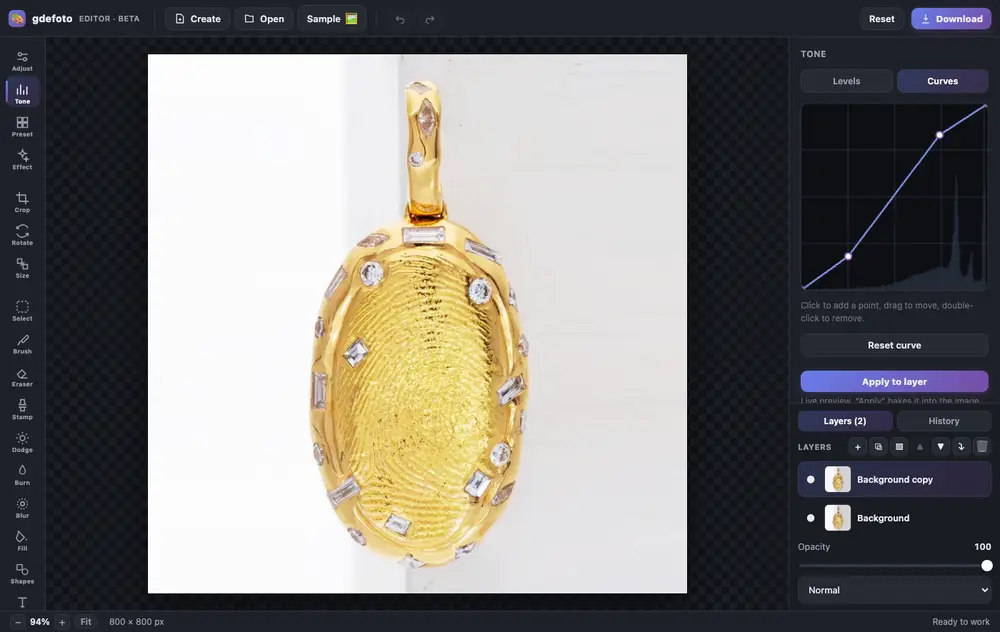
Crop, fix the light with curves, clean up with the clone stamp and add a caption. All in one tab, no install and no sign-up.
- Layers and masksBlend modes, opacity, masks painted with a brush or made from a selection.
- Light and colourLevels, curves, exposure, contrast, saturation and warmth.
- RetouchingClone stamp, dodge and burn, blur, brush and eraser. Crop, rotate and resize.
- AI built inColorize, restore, remove the background, upscale and sharpen: the result is added as a new layer.
- Text and shapesCaptions in the font you choose, rectangles and circles over the photo.
- In your browserNothing to install, no account. Full history with undo.
- Product photos: crop, brighten the background with levels, remove dust with the clone stamp.
- Old photos: restore with AI, colorize and add a caption.
- Social posts: a canvas from a size template, your shot and text on top.
Editing is free. Download is watermarked; remove the mark for $2.99.
AI versus manual retouch, a decision framework
The question is rarely AI or manual in absolute terms; it is which task within each image goes to which method. Use a simple framework: route high-volume, low-complexity work to AI and reserve human retouching for low-volume, high-stakes work where a flaw costs a sale. The dividing line is edge complexity and product value.
- Send to AI: background removal on solid opaque products, batch resizing and cropping, aspect-ratio standardization, first-pass shadow generation, and upscaling of legacy shots.
- Send to a human: hair and fur edges, glass and transparent products, jewelry and reflective metal, hero images for flagship SKUs, and any image where color accuracy is legally or commercially critical.
- Hybrid (AI then human): most premium catalogs, where AI does the bulk cutout and a retoucher refines the difficult 20 percent.
A useful rule is the cost-of-error test: if a small retouching mistake on this image would trigger returns, damage brand perception, or violate a marketplace policy, put a human in the loop. A five-dollar accessory can ride on pure AI; a flagship watch or a signature garment should not. The framework keeps your cost per image low on the long tail while protecting the handful of images that actually carry your brand.
Do not want to fiddle with it? Hand the photo to a retoucher
Automation does not fix everything: a difficult frame, a photo that matters, an old print off a scanner. Where the algorithm gives up, a person works the picture layer by layer in Photoshop, by hand.

 BeforeAfter⇆
- Bring back sharpness in the face and eyes
- Remove noise and artefacts without plasticising the skin
- Fix colour, contrast and a broken exposure
- Remove scratches, stains and creases from an old scan
- Return a file large enough to print
- Price per photo$10
- Turnaroundwithin 24 hours
- Deliveryto your email
- If we cannot do itmoney back
We will finish your photo by hand
A studio retoucher fixes what automation cannot: sharpness, face, colour, defects. Pay first, then simply send the photo and tell us what you need. If we cannot do it, you get your money back.
- Manual photo retouching$10
A quality control checklist for AI output
AI is fast, which means it produces errors fast too. A structured QC pass before anything goes live catches the artifacts that automated tools reliably introduce. Never publish a batch straight from the AI without a human review gate, because a single bad cutout multiplied across a catalog does visible brand damage.
- Edges: zoom to 100 percent and check the outline for halos, chewed hair, or hard jagged lines.
- Transparency: confirm see-through areas of glass and sheer fabric were preserved, not filled with white.
- Color: compare the retouched product color to a reference sample; watch for shifts on metal and reflective surfaces.
- Detail integrity: verify logos, printed text, and fine patterns are accurate and not AI-invented, especially on upscaled files.
- Shadow logic: check that any generated shadow matches the light direction and softness of the product.
- Consistency: place the batch side by side and confirm uniform crop, background, shadow, and scale.
- Policy: confirm the main image meets the marketplace's pure-white-background and no-added-graphics rules.
Build this checklist into your workflow as a required step, not an optional one. The whole value of AI is throughput, and a two-minute QC pass per image preserves that speed while keeping the errors AI introduces from ever reaching a shopper.
Where AI still fails on premium products
The higher the price and the more scrutiny a buyer applies, the more AI's weaknesses show. Premium products fail AI retouching in predictable places, and knowing them tells you exactly where to spend human hours. Fine jewelry is the classic case: the value lives in the sparkle, the metal's warmth, and the accuracy of gemstone color, all of which AI tends to flatten, contaminate with background reflections, or shift in hue. A muddy or miscolored diamond photo undersells the item and invites returns from buyers expecting the real thing.
Other premium failure zones include glassware and crystal, where transparency and internal reflections defeat automated masking; textiles and knitwear, where AI clumps fine fibers and loses the tactile texture that justifies the price; leather goods, where AI can smooth away the grain that signals quality; and cosmetics, where exact shade reproduction is the entire purchasing decision. In each case the AI produces something that looks fine at thumbnail size and falls apart under the zoom a serious buyer will use. Premium shoppers photograph-match against expectation, and any softness, color drift, or invented detail erodes trust in the whole listing. For these categories, treat AI as an accelerator for the easy 80 percent and budget skilled human retouching for the details that carry the value. The margin on premium goods easily justifies it.
Cost comparison, AI tools versus outsourcing
The economics of retouching have shifted, but the right answer still depends on volume and complexity, not on which option is cheapest per image in isolation. AI subscription tools cost a fixed monthly fee and a few cents of effort per image, making them extraordinarily cheap at scale for simple work. Professional outsourcing costs more per image but includes the human judgment that AI cannot supply on difficult edges and premium products. The mistake is treating them as an either/or when the smart catalog uses both.
- Pure AI: lowest cost per image, best for large volumes of simple, low-value SKUs where an occasional imperfect edge is acceptable.
- Pure outsourcing: highest cost per image, justified for hero shots, flagship products, and difficult categories where errors cost sales.
- Hybrid pipeline: AI handles bulk cutouts and standardization, a professional refines the hard 20 percent, giving you the lowest blended cost at acceptable quality.
Run the real math on your own catalog. If you have 500 simple accessories, AI at a few cents each is unbeatable. If you have 50 premium items whose photos drive most of your revenue, the return on professional retouching dwarfs the per-image cost. Most sellers land on a hybrid where AI covers the long tail and human work protects the products that actually make the money. Optimize the blend, not a single line item.
Prompt tips for product photography AI
Generative AI tools that respond to text prompts are increasingly used for backgrounds, scenes, and fill, and the quality of your prompt largely determines the quality of the result. The core discipline for product work is restraint: describe the environment and lighting you want, but never ask the AI to alter or regenerate the product itself. Your job is to place an accurate product into a plausible scene, not to let the model reimagine what you are selling.
- Describe the surface and setting precisely: "product on a light oak table, soft window light from the left, neutral background."
- Specify lighting direction and quality so any generated shadow will match the product's real lighting.
- Name the mood and audience: "clean minimal e-commerce style" beats a vague "nice background."
- State what to exclude: "no text, no logos, no additional objects, no reflections on the product."
- Keep the product fixed by compositing it in, rather than asking the model to draw the product from a description.
Iterate in small steps and inspect each result at full resolution. Generative backgrounds are powerful for lifestyle and secondary images, but the main marketplace image almost always needs to stay on a pure white background per policy, so reserve creative prompting for the supporting gallery shots where a lifestyle scene can help the sale.
Batch automation and consistency across a catalog
The real payoff of AI retouching is not a single beautiful image, it is a thousand consistent ones. Batch automation lets you apply the same background removal, crop, shadow, and color treatment to an entire catalog in a fraction of the time manual work would take. The goal is a pipeline: ingest raw shots, run automated cutout and standardization, route difficult items to human review, and export publish-ready files at the exact dimensions each marketplace requires. Set the parameters once, then process hundreds of SKUs against them.
Consistency is the discipline that makes automation pay off. Define a single specification, background color, product size within the frame, shadow style, aspect ratio, and file resolution, and enforce it across every SKU so your catalog looks like one coherent brand rather than a patchwork of individual shoots. Amazon, Etsy, and eBay each have their own size and format requirements, so build export presets per platform and generate all versions from one master file. Batch processing also makes updates trivial: if you decide to change your shadow style, you rerun the batch instead of re-editing images one by one. Automation without a fixed specification just produces inconsistency faster, so write the spec first and let the batch enforce it. That combination of speed and uniformity is exactly where AI earns its place in a serious catalog operation.
Keeping brand consistency with AI
Shoppers judge a brand's credibility in part on the visual coherence of its catalog. When every listing shares the same background, lighting feel, product scale, and shadow treatment, the store reads as professional and trustworthy; when images vary randomly, the brand feels improvised. AI is a double-edged tool here: run without rules it introduces subtle variation between images, but governed by a clear style guide it becomes the most reliable way to keep a large catalog visually unified.
The practical move is to codify your visual standard and bake it into your AI pipeline. Decide your product-to-frame ratio, your exact white or gradient background, your shadow direction and softness, and your color-handling rules, then apply them identically to every image the AI touches. Pay particular attention to color, because AI tools can drift hue between batches, and a brand whose signature red shows up slightly different on every product looks careless. Periodically pull a spread of listings side by side and audit them as a set, not one at a time, to catch drift before it accumulates. Consistency also compounds your other efforts: uniform imagery makes A+ content, storefronts, and advertising look cohesive, and it reinforces recognition every time a shopper sees your products. Treat brand consistency as a spec the AI must obey, not a happy accident, and the tools will hold your catalog together at scale.
Authenticity limits, never misrepresenting the product
AI makes it trivially easy to produce images that no longer reflect the actual product, and that is a line you must not cross, for both ethical and commercial reasons. The purpose of retouching is to present the product accurately at its best, not to manufacture a product the buyer will never receive. Marketplaces explicitly prohibit misleading imagery, and the practical penalty is brutal: a photo that oversells reality generates returns, negative reviews, and a damaged seller rating that costs far more than any short-term conversion bump.
Draw the boundaries clearly. It is legitimate to remove backgrounds, correct exposure, ground a product with a natural shadow, and clean up dust or a stray reflection that was never part of the item. It crosses into misrepresentation to change the product's true color, invent detail that does not exist, smooth away real flaws the buyer will encounter, or use generative fill to alter the item's shape or features. Color is the most sensitive area: a shopper who receives a garment two shades off from the photo will return it and blame you, so accurate color reproduction is both an ethical duty and a return-prevention strategy. The test is simple: would a buyer holding the real product feel the photo told the truth? If not, the edit went too far. Honest imagery is the cheapest returns insurance you can buy.
When to hand a catalog to professionals
AI handles more every year, but there are clear signals that a catalog has outgrown a do-it-yourself workflow and should go to professionals. The strongest signal is category: if you sell jewelry, glassware, premium textiles, leather goods, or cosmetics, the exact categories where AI still fails, professional retouching is not a luxury but a requirement for competing on those product pages. Volume is the second signal: once you are processing hundreds of SKUs on a recurring basis, a professional pipeline delivers consistency and throughput that ad hoc editing cannot match.
Other triggers include launching a flagship or hero product where the images carry disproportionate revenue, expanding to new marketplaces each with its own image specifications, and discovering that photo-related returns or complaints are eating your margin. In all of these cases the return on professional work is easy to calculate: even a small lift in conversion or a small drop in returns across a busy catalog quickly outweighs the cost. We have prepared product photography and retouching for jewelry stores and clothing brands for years, and the pattern is consistent, sellers who keep AI for the simple long tail and hand the premium and high-volume work to specialists get the best of both, low cost where it is safe and professional quality where it counts. The decision is not AI versus professionals, it is knowing which parts of your catalog each one should own.
FAQ about AI retouching for Amazon in 2026
Is AI background removal good enough for Amazon main images?
For solid, opaque products with clean edges, yes, modern AI produces publish-ready cutouts on a pure white background in seconds. For hair, fur, glass, transparent materials, and jewelry, the AI should be a first pass followed by human refinement, because automated masking leaves halos, chewed edges, or color contamination on exactly those difficult surfaces.
Can AI upscaling rescue my old low-resolution product photos?
Often yes, AI upscaling can turn a small or soft legacy image into a crisp file that qualifies for Amazon's zoom feature. Inspect the result at full size, though, because upscalers can invent false detail on logos, printed text, and fine patterns. Where a reshoot is possible it will always beat an upscale for genuinely accurate detail.
Does AI retouching risk violating marketplace policies?
Only if you let it change what the product actually is. Removing backgrounds, correcting exposure, and adding a natural shadow are all fine. Altering true color, inventing detail, or using generative fill to change the product's shape crosses into misrepresentation, which violates policy and drives returns. Keep edits truthful to what the buyer will receive.
Should I use AI or hire professionals for my catalog?
Use both. Route high-volume, simple, low-value SKUs to AI for a few cents each, and reserve professional retouching for hero images, flagship products, and difficult categories like jewelry, glass, and textiles where errors cost sales. Most sellers settle on a hybrid pipeline that keeps blended cost low while protecting the images that carry the brand.
We will edit a sample from your catalog for free
For online stores, manufacturers, brands and wholesale suppliers. Send 1-3 product photos and we will return them professionally edited, with a price quote for your whole catalog.
This is a b2b, volume format. We do not process personal photos (portraits, events, documents) here.
Request received
We will edit your sample and send the result with a catalog quote within one business day.